Edit + delete Articles
In this article, we'll cover:
- How to edit and delete articles
How to edit and delete articles
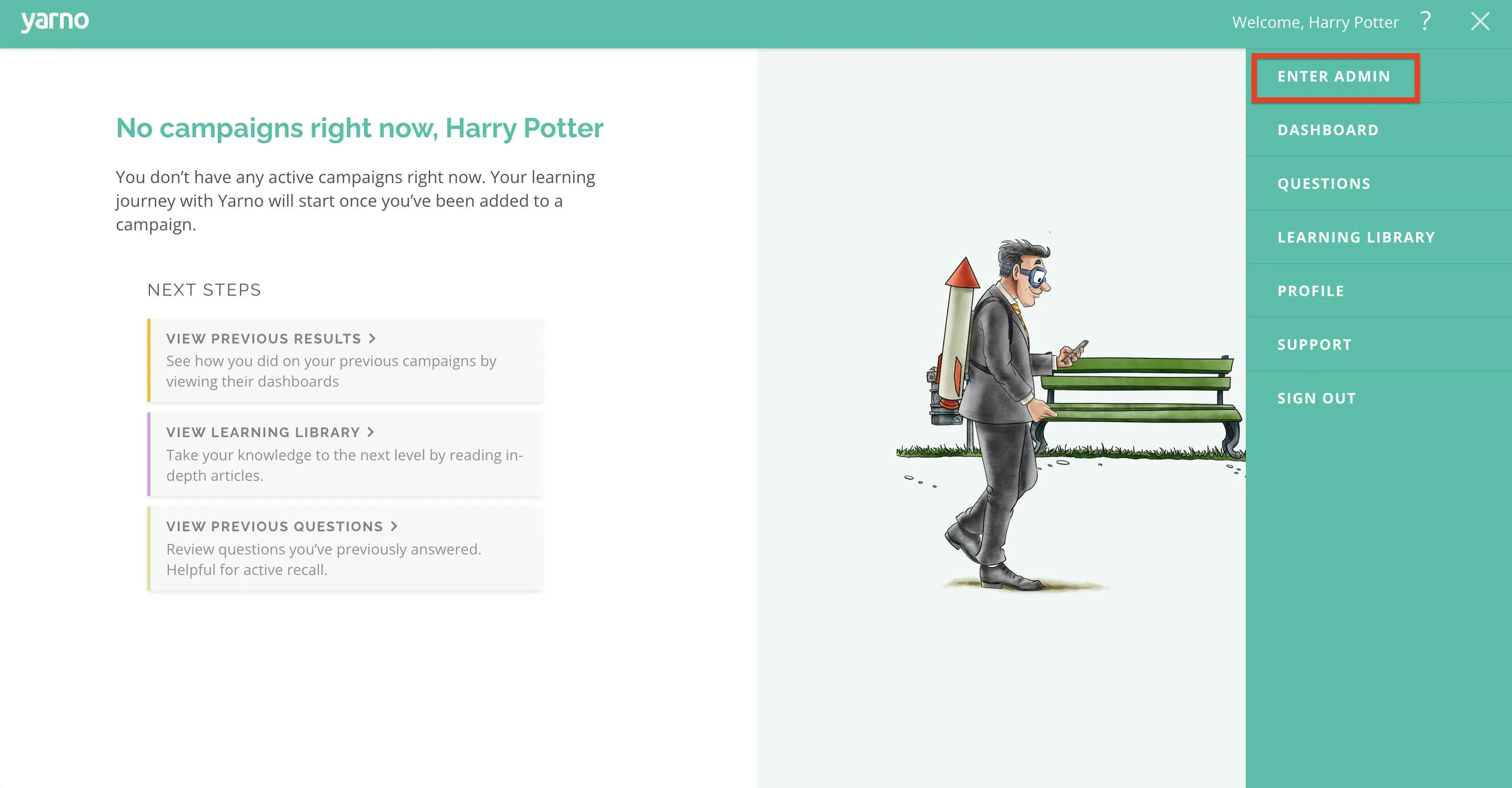
Step 1: Sign into your Yarno account, then click on the hamburger icon on the top right of your screen and select "ENTER ADMIN".
Step 2: Click on the "LEARNING LIBRARY" button on the menu at the top of the screen. Navigate to the article you're after then click on the "EDIT ARTICLE" button on the right side of the article.
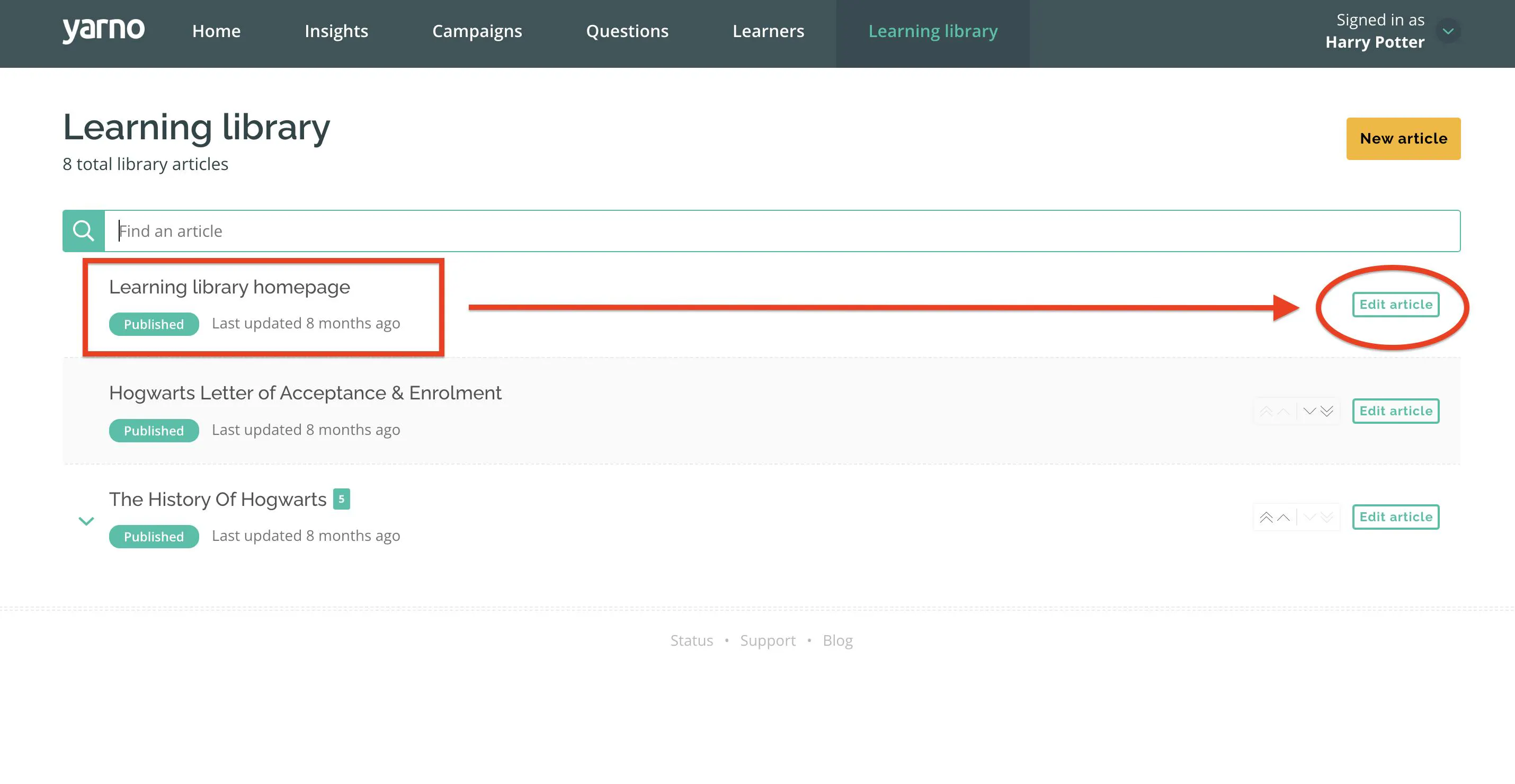
Tip! As an Admin you can also access the edit function for articles from the Learning Library itself (without accessing the Admin Portal) - just look out for the "Edit article" button in the top right of each article.
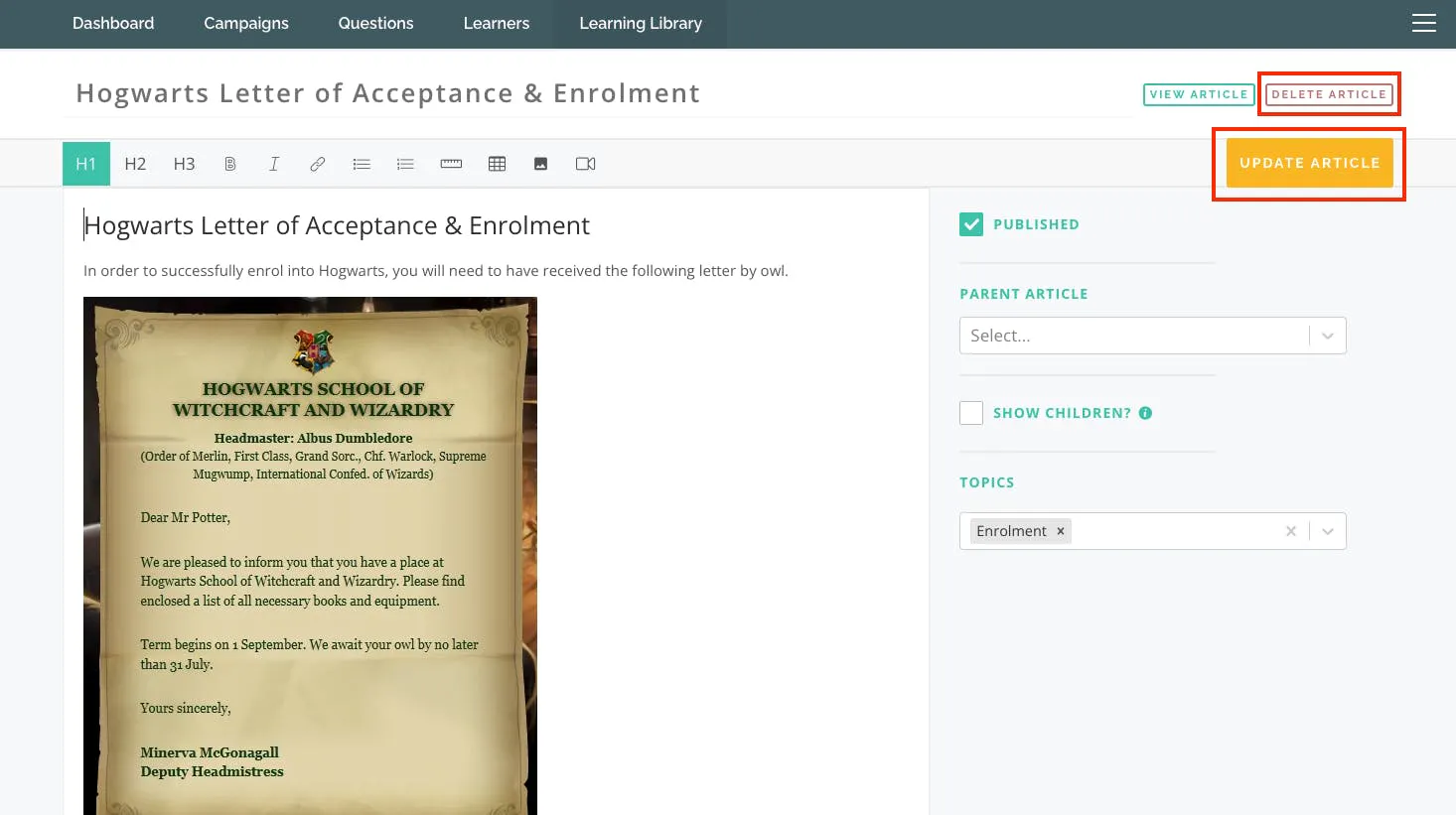
Step 3: Edit the content as you see fit then click the orange "UPDATE ARTICLE" button on the right to save your changes. To delete the entire article, press the "DELETE ARTICLE" button above instead.